

Brand and white-label
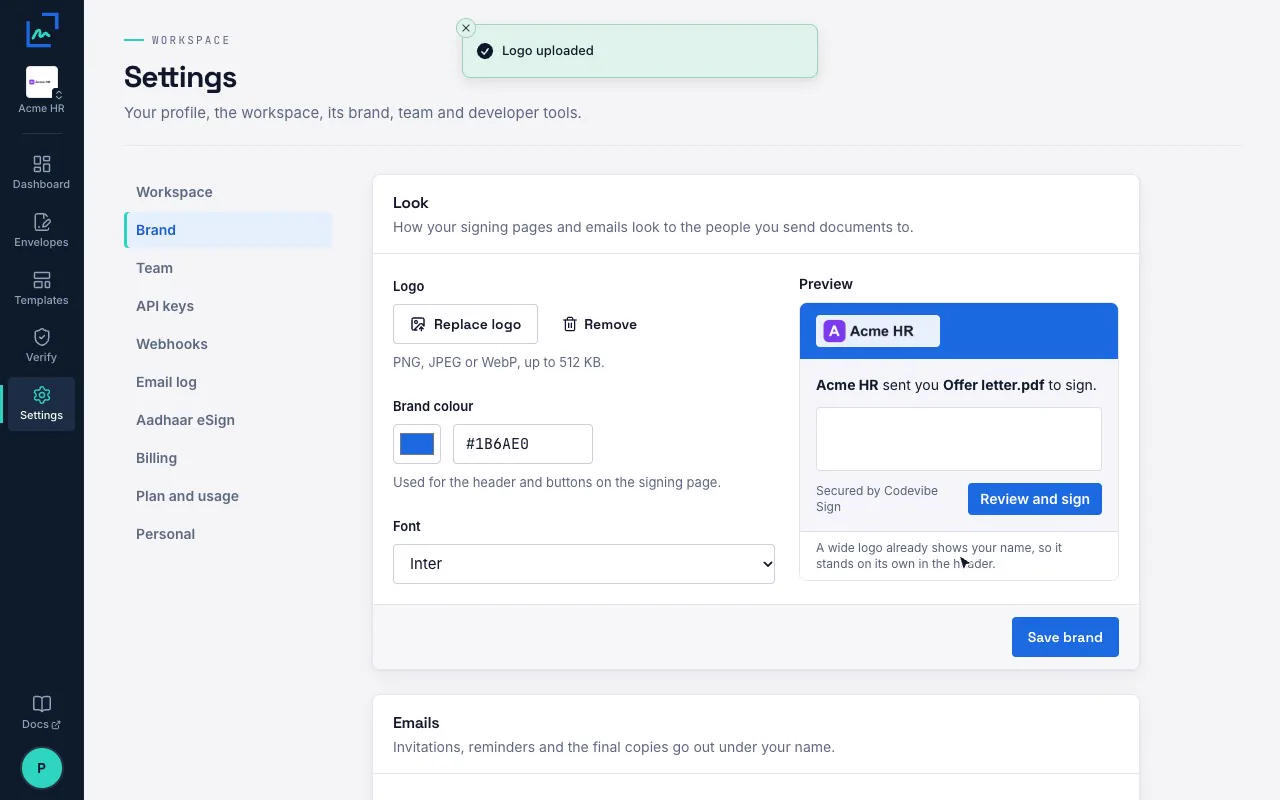
Owners and admins set the brand under Settings, Brand. It applies to the signing page, the emails recipients get and the certificate page. The Preview next to the form shows each change before you save.
Look
Logo: Upload logo, then Replace logo or Remove. PNG, JPEG or WebP, up to 512 KB. Its shape decides how the header of the signing page shows it:
- a wide logo, at least twice as wide as it is tall, already carries your name, so it stands on its own;
- a square logo is a mark, so the workspace name is shown next to it;
- with no logo, the first letter of the workspace name in the brand colour stands in for the mark, with the name next to it.
The preview says which of these applies to the logo you uploaded.
Brand colour: buttons and accents. The text colour on top of it is chosen for you so it stays readable.
Font: Inter, Space Grotesk, the system font or a serif.
Press Save brand.
Emails
- Sender name: the name recipients see. The address stays the install's own, so the email is not marked as spam.
- Reply-to address: where replies go, for example your HR inbox.
- For each email (Invitation, Reminder, Completed, Cancelled), a Subject (up to 150 characters) and Opening text (up to 1,000). Insert values with the variables the form offers: the recipient's name, the document title, your company, the action asked for, the expiry date and the status.
Leave a field empty to keep the standard text.
Signing page and certificate
- Show "Secured by Codevibe Sign": the small badge on the signing page. It is always shown on the Free plan and optional on Cloud and self-hosted installs.
- Certificate footer: a line printed at the foot of the certificate page.
- Signing page domain: your own address for signing links, such as
sign.example.com, on Cloud and self-hosted installs. Enter it, then add the CNAME record the page shows at your DNS provider. The status shows Waiting for DNS until the record is found, then Connected. DNS can take up to a day; after that the operator of the install turns on the certificate for the domain, and new signing links use it. Until then links keep using the install's address.
Press Save signing page settings.