

Sign a document
This page is for the person who got a signing email, and for senders who want to know what their recipients see. No account is needed to sign.
Steps
The page shows the sender's workspace at the top left and Secured by codevibe sign at the top right. On a phone the same steps fit the screen, and dialogs open as sheets from the bottom.
- Open the link in the email. It is private to you and stops working when the envelope expires, is withdrawn or is done.
- Confirm it is you, if the sender asked for a code: press Send me a code, enter the 6-digit code from your email and press Confirm. A code works for 10 minutes and allows 5 tries; Send a new code gets another.
- Agree to sign electronically: tick the box, then Continue to the document. The page first tells you how many pages there are and how many fields to fill.
- Fill in your fields. Press Start and the page takes you to the first highlighted field; Next field moves on to the one after. Date signed fills itself in.
- Press Finish and sign, then Finish and sign again in Ready to sign? You cannot change it afterwards. If you were asked to approve, the buttons say Approve instead.
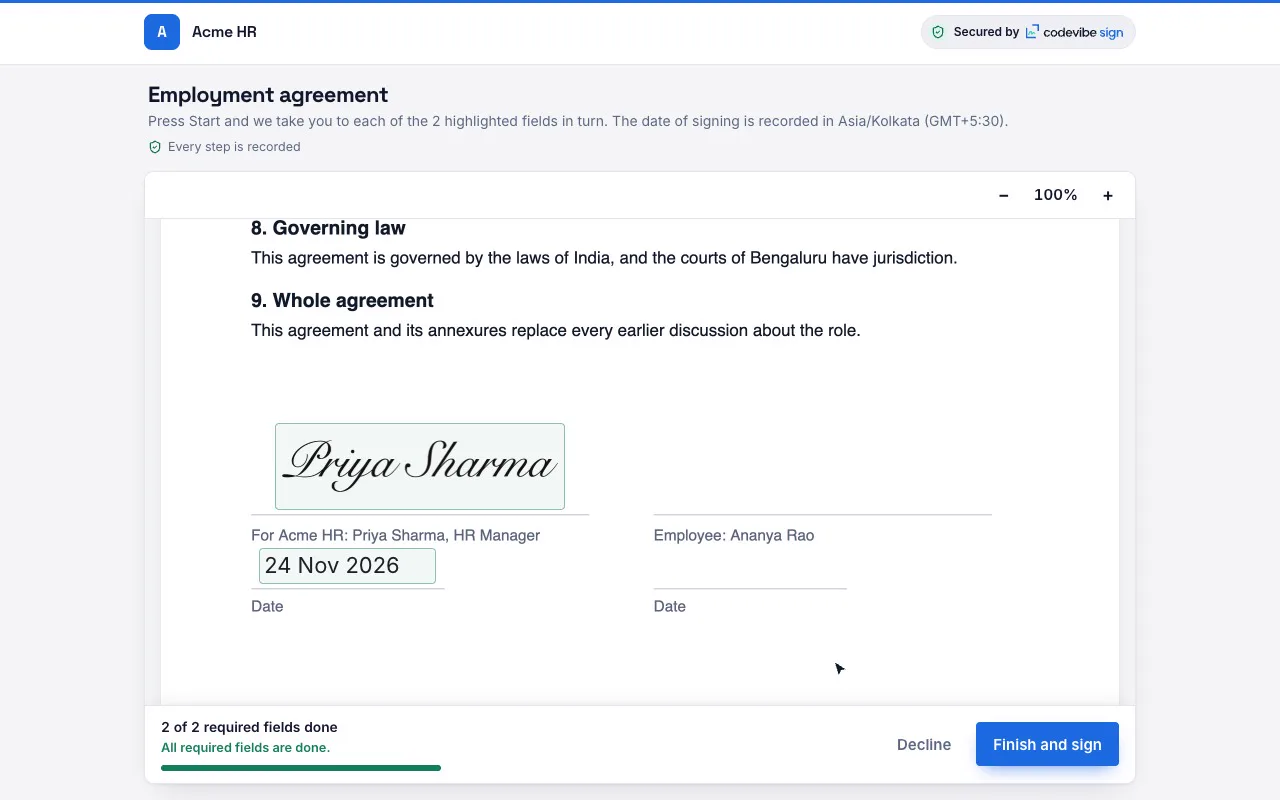
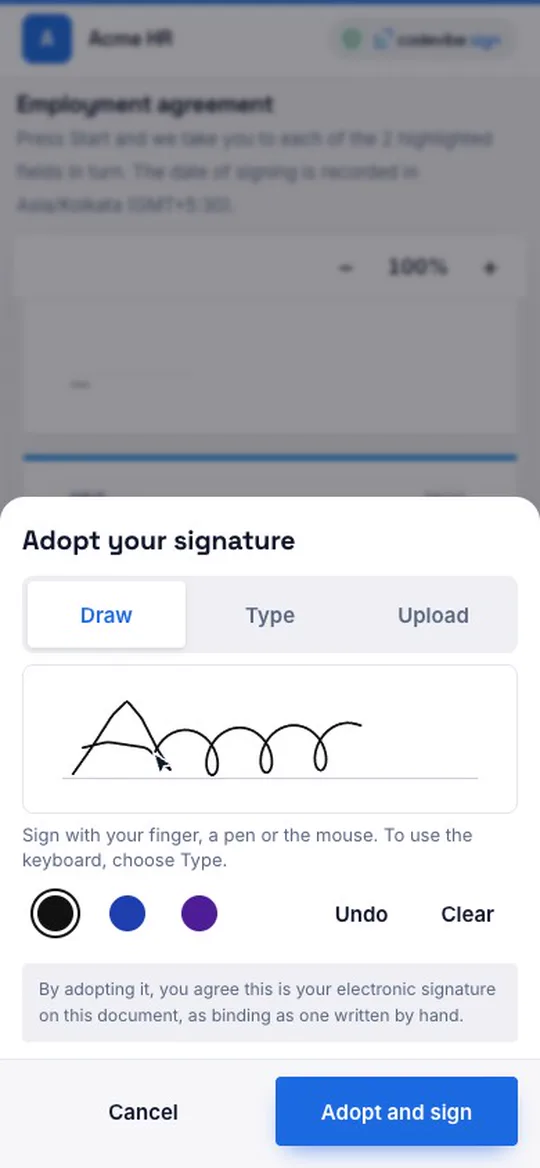
Your signature
The first time you reach a signature field, Adopt your signature opens. Choose how to make it:
- Draw with a finger, pen or mouse.
- Type your name and pick a style: Flowing, Casual or Formal. Names in Devanagari, Bengali, Gujarati, Gurmukhi, Kannada, Malayalam, Oriya, Tamil, Telugu and Arabic script are shown in a font for that script from your device, so type your name the way you write it.
- Upload a picture of your signature: PNG, JPEG or WebP under 5 MB. The background is removed.
Pick an ink colour if you like, then press Adopt and sign. Your other signature boxes take the same signature with one tap. Initials work the same way under Adopt your initials.
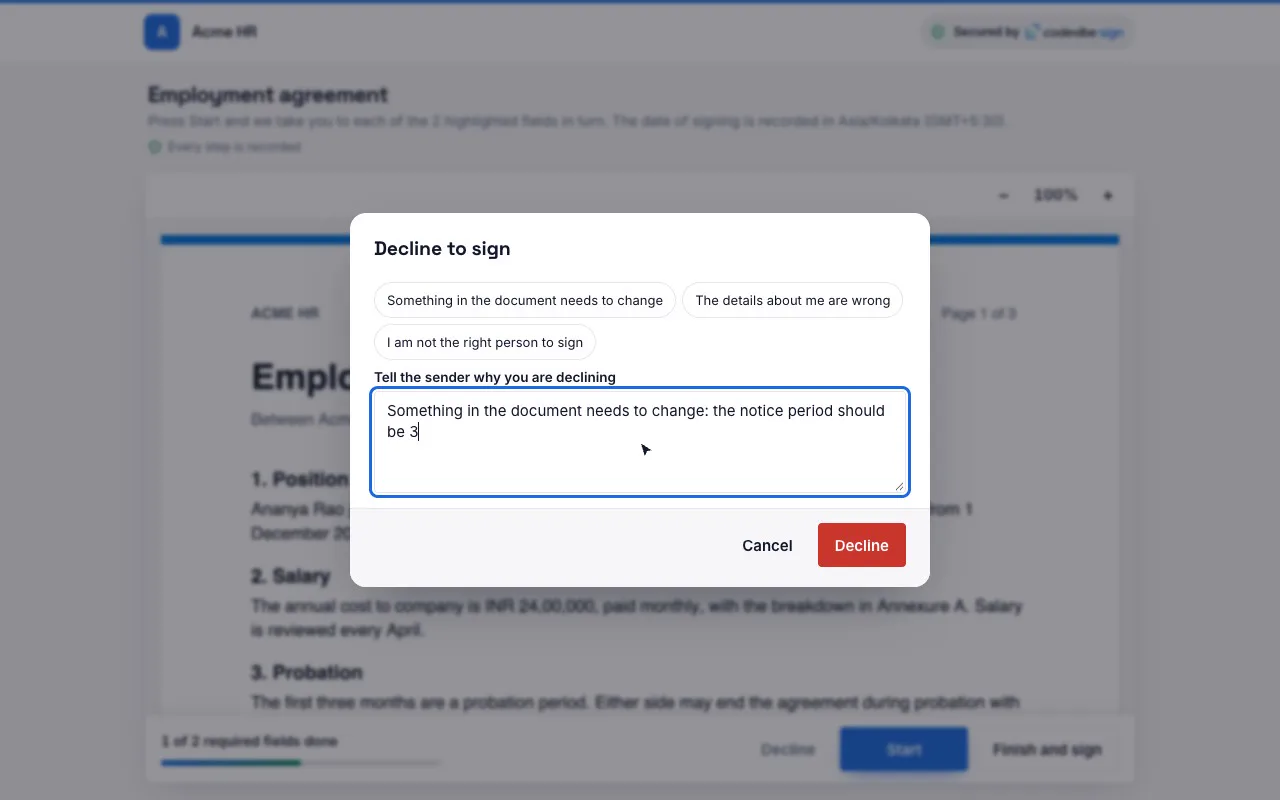
Decline
If something is wrong, press Decline. In Decline to sign, pick a reason such as Something in the document needs to change or The details about me are wrong, add to it in your own words, and press Decline. The sender sees the reason and can send a corrected document.
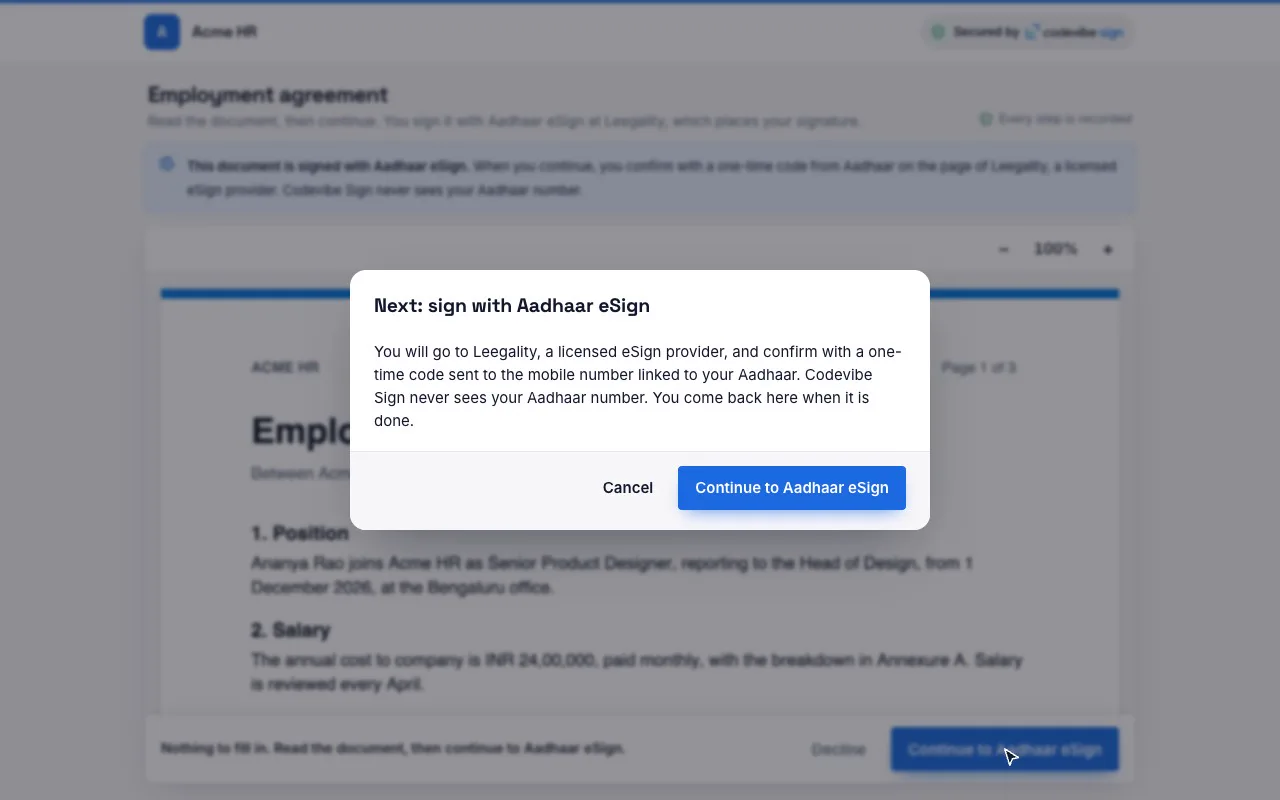
Aadhaar eSign
If the sender asked for Aadhaar eSign, there is nothing to fill in or draw: read the document, then choose Continue to Aadhaar eSign. On Leegality's page you review the document and confirm with the OTP sent to the mobile number linked to your Aadhaar; Leegality places your signature. Then you come back here. If it fails or runs out of time, press Try again. Codevibe Sign never sees your Aadhaar number.
When everyone has signed, the thank-you page offers Signed document (Aadhaar eSign), the file with your Aadhaar signature and the Codevibe Sign seal, and Certificate and audit trail, a separate PDF with the signing certificate and every event. The email carries both.
Afterwards
The thank-you page says whether others still have to sign. Once everyone has, it offers Download your copy, one sealed PDF with the signing certificate as its last page, and Download the audit trail (PDF). You also get both by email, attached or as download links that work for 30 days.
If the link shows a message instead of the document:
| Message | What to do |
|---|---|
| This link has expired | Ask the sender to send it again. |
| This request was withdrawn | The sender voided or recalled it; they will send a new one if needed. |
| It is not your turn yet | Someone before you has not signed; you get an email when it is your turn. |
| You have already signed | Nothing more to do. Your copy comes by email when everyone is done. |
| This link does not work | Use the newest email from the sender, or ask them to send the link again. |