

Transfer a workspace
A transfer moves a workspace to someone else's account, for example when a client takes over the workspace you set up for them, or a company changes who pays. The workspace keeps its documents, people and address; only the account it belongs to changes.
Who can start one
Only the account holder, the owner whose plan the workspace is on. Any owner of the workspace can cancel an open offer. See Team and roles.
Before you start
- The new owner must already be in the workspace, or invited to it. Invite them from Settings, Team first.
- Their account must have room for one more workspace. The Free plan holds one, so a person on Free who already has a workspace must move to Cloud first. The app checks this when you offer and again when they accept.
- A workspace can have one open offer at a time.
Offer it (current owner)
- Open Settings, Workspace and find Transfer ownership.
- Enter the New owner's email.
- Tick Leave the workspace when it moves if you want to leave. Otherwise you stay on as an admin.
- Press Transfer workspace, read what moves and what stays, then Send transfer offer.
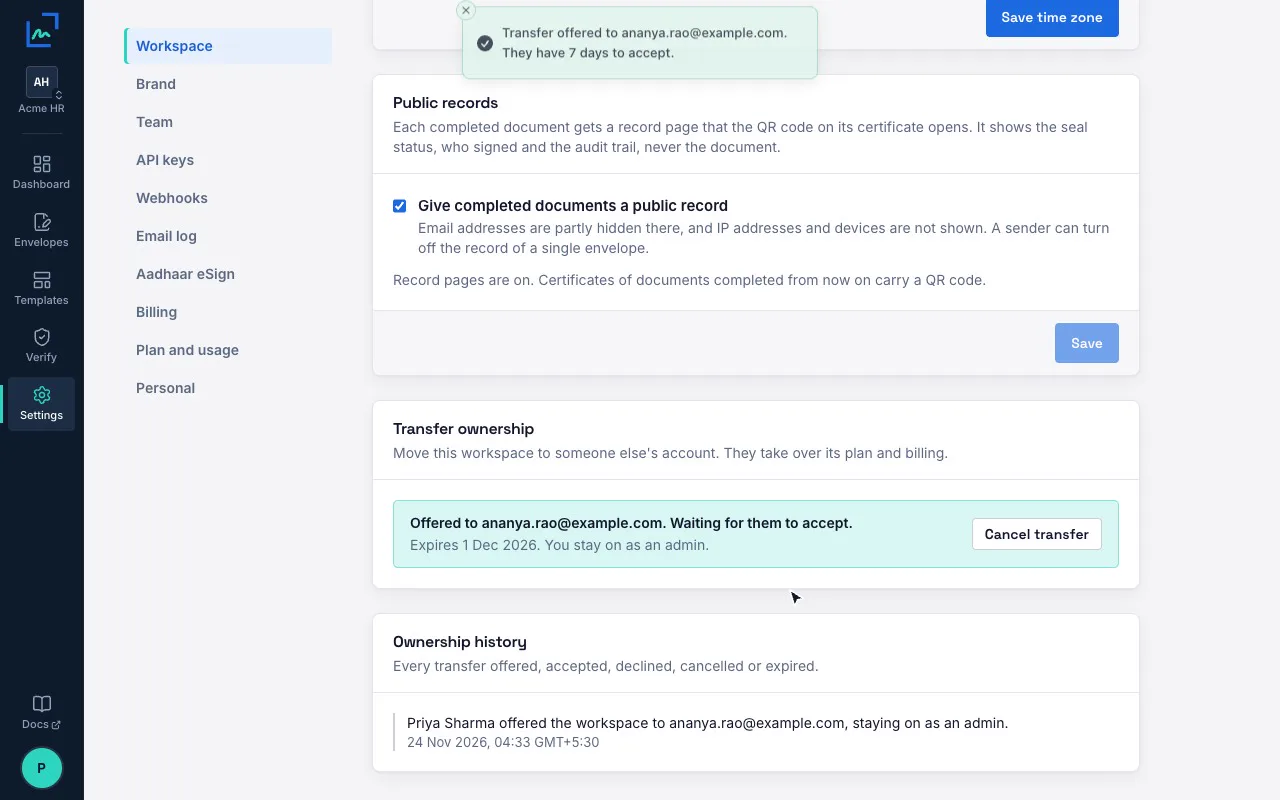
The confirmation lists what moves with the workspace and what stays with you, and the offer expires in 7 days. They get an email and a notice in the app. While the offer is open, the card shows who it went to and when it expires, with Cancel transfer.
Accept it (new owner)
- Open the link in the email, or Review the offer on the notice in the app.
- Read the offer, then Accept or Decline.
- To accept, confirm with Your password. If your account has no password, sign in again first (Sign in again); a sign-in from the last 15 minutes counts.
You must be signed in with the address the offer was sent to. If your plan has no room for another workspace, the page says so with an Upgrade link, and the offer stays open until it expires.
What moves and what stays
| Moves with the workspace | Stays with the previous account |
|---|---|
| Envelopes and sealed documents | Invoices already issued |
| Templates | Aadhaar eSign credits |
| Members and open invitations | The Cloud subscription and its paid term |
| API keys and webhooks | |
| Brand, settings and the address |
When it is accepted:
- the new owner becomes an owner, and the workspace counts on their account and plan;
- the previous owner becomes an admin, or leaves if they chose to;
- billing admins become members, because they were trusted with the previous account's money. The new owner can make someone billing admin again.
Expiry and history
An offer expires after 7 days without an answer, and nothing changes. Declined, cancelled and expired offers change nothing either. Start a new one if needed.
Ownership history, under the transfer card, lists every step: who offered the workspace and to whom, and whether it was accepted, declined, cancelled or expired. Emails go out when an offer is made, accepted, declined or cancelled.