

Send a document
Press Send a document on the dashboard or under Envelopes. An envelope is one signing request: one or more PDFs, the people who act on them and their fields. The send flow opens full screen with its four steps across the top: Documents, Recipients, Fields and Review & send. Continue moves on, Back goes back, and a step you have finished can be opened again from the top. The cross at the top left closes the flow; once recipients are added, the draft is kept under Envelopes.
1. Documents
Drop your PDFs on the page or press Choose files: up to 20 PDFs. Each file can be up to 20 MB, and on the Free plan 10 MB a file and 25 MB for the whole envelope. Each file is checked as you add it and shows Ready to sign when it can be signed. Password-protected PDFs are refused: remove the password first.
2. Recipients
Add each person with Add recipient, or yourself with Add me. Up to 50 people.
| Role | What they do |
|---|---|
| Signer | Fills in their fields and signs. |
| Approver | Reads the document and approves it. No fields. |
| Gets a copy | Receives the sealed copy when everyone is done. |
At least one signer or approver is needed.
Identity check decides how each person proves it is them before they act:
- Email link + code (recommended): the link in their email, then a 6-digit code sent by email.
- Email link only: weaker evidence; anyone with the email could sign.
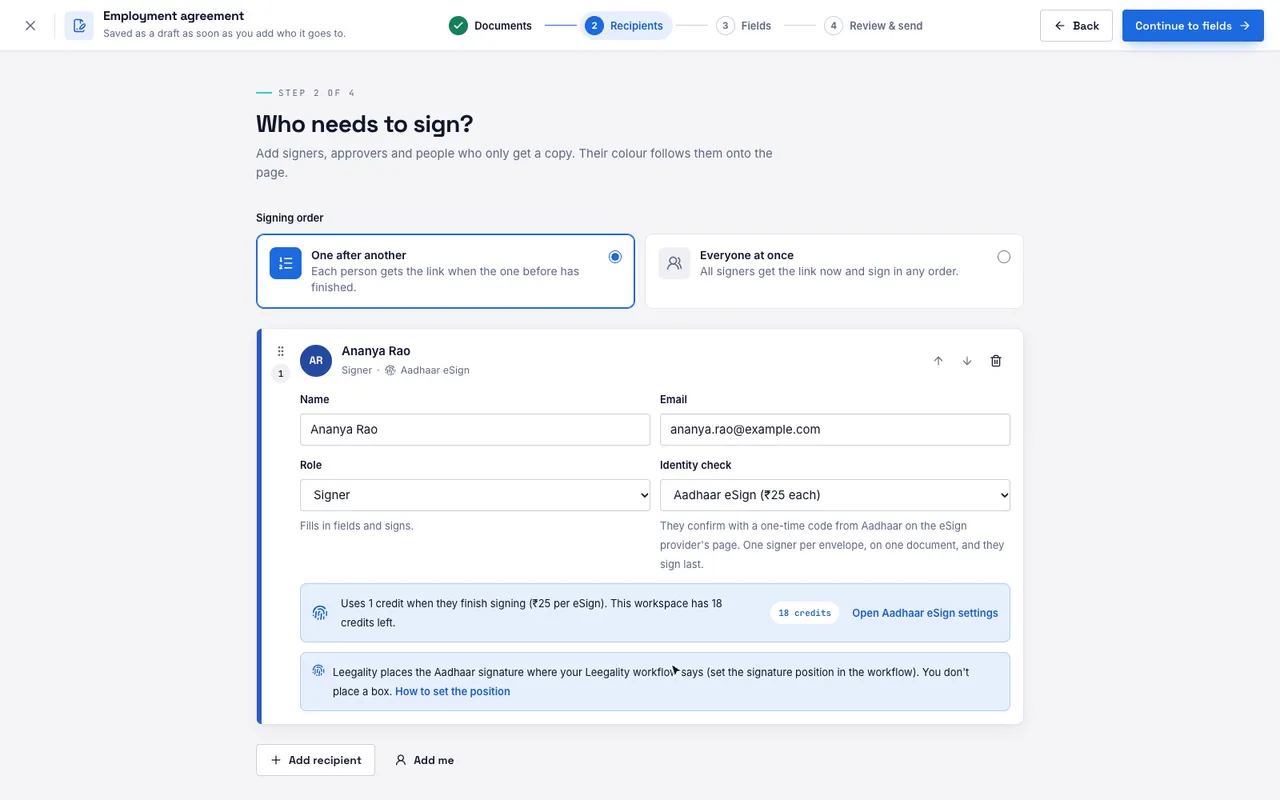
- Aadhaar eSign: the signer signs with their Aadhaar OTP through Leegality. It costs one credit on the cloud and has four rules: one Aadhaar signer, one document, that signer signs last, and the order is One after another. Leegality places the Aadhaar signature where your Leegality workflow says, so you place no box for that signer; a note under their row says so. See Aadhaar eSign.
Codes by text message are coming later; they are not offered yet.
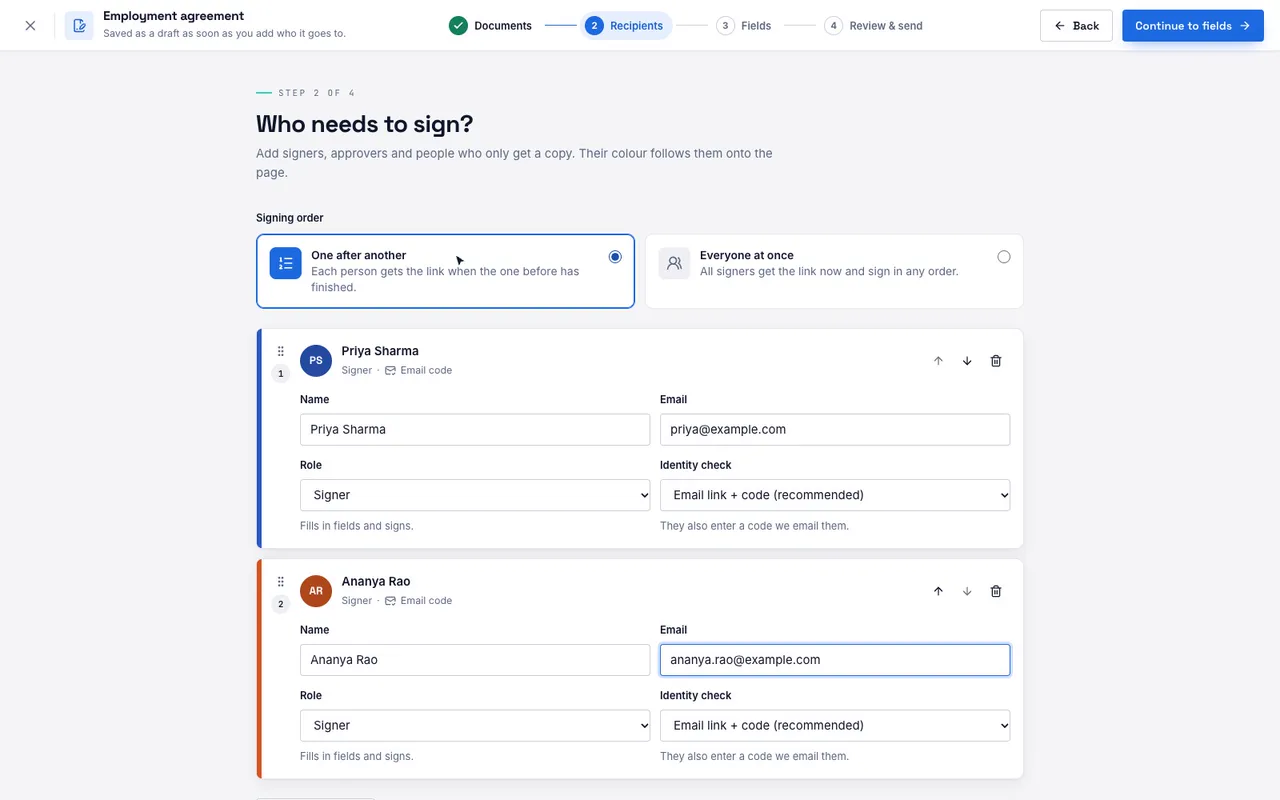
Signing order is One after another (each person is invited when the one before has finished) or Everyone at once. With One after another, drag a person by the handle on the left of their card, or use the arrows, to change the order. Each person gets a colour that follows them onto the page.
Once recipients are added the envelope is saved as a draft and every change saves as you go.
3. Fields
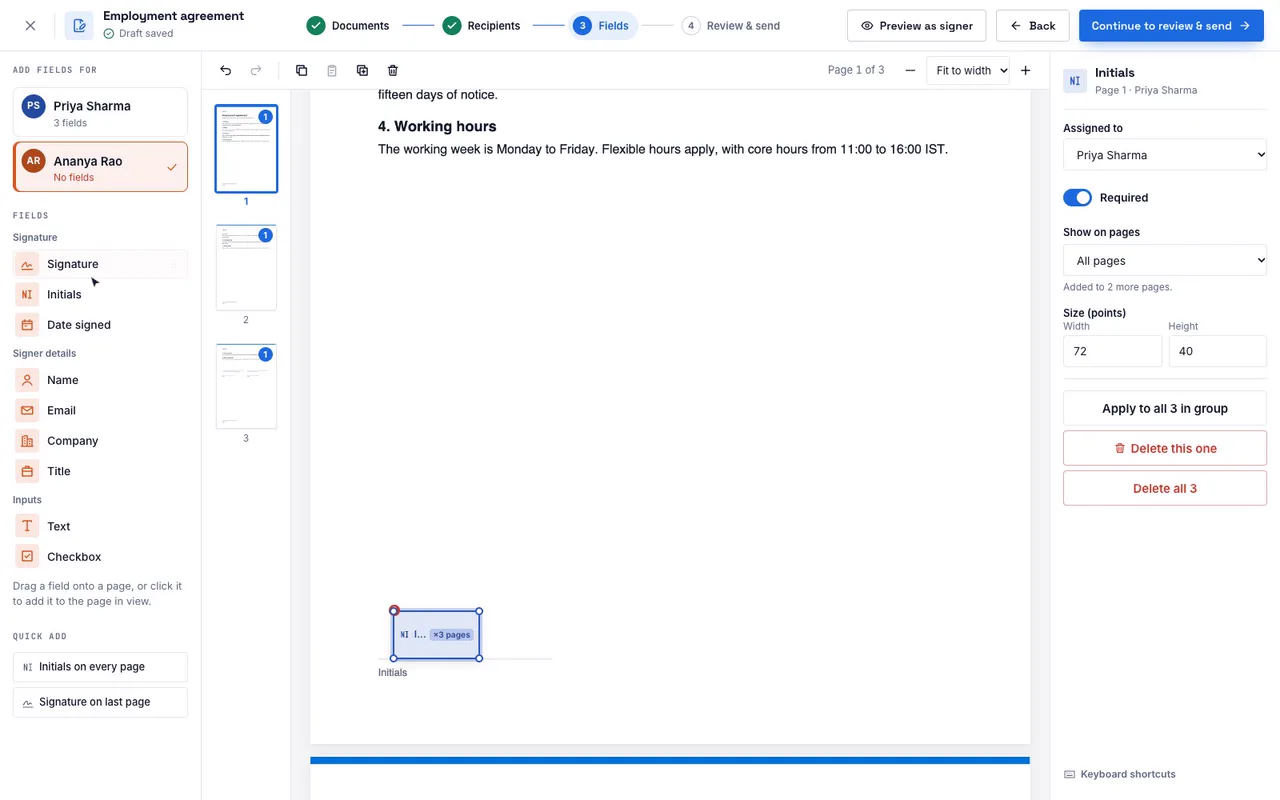
The fields step has three parts: on the left, Add fields for with each recipient and the fields you can give them; in the middle, the pages, with a rail of page thumbnails to jump between them; on the right, the properties of the selected field, or the Fields summary when nothing is selected.
Pick a recipient, then drag a field onto the page, or click it to add it to the page in view:
- Signature: Signature, Initials and Date signed.
- Signer details: Name, Email, Company and Title.
- Inputs: Text and Checkbox.
Every signer needs at least one required signature. The Fields summary says who still has none, with a link that adds one. A signature or initials field placed over page text gets a warning, because the signature would hide the text.
Select a field to change it on the right: Assigned to, Required, its size, and Show on pages: This page only, All pages, or Specific pages with page numbers such as 1, 3 and Apply. Quick add places Initials on every page or a Signature on last page for the selected recipient in one click. Undo, redo, copy, paste, duplicate and delete sit above the pages; Keyboard shortcuts lists the keys. For tags written in the PDF itself, see Fields across pages and tags.
A signer who uses Aadhaar eSign fills in nothing. With them picked, the tray offers one item, Aadhaar seal position, and the quick add Aadhaar seal on last page. The box is optional and only marks where Leegality draws the Aadhaar signature: it has a dashed edge, its panel says "Position only", it has no Required switch, and nothing is drawn for it in any PDF. There is at most one; drag it to move it. Without a box, Leegality places the signature where its workflow says, and the note above the pages says so. Give any date, text or checkbox to a signer before them. The document Leegality signs is then exactly what you approved, with the earlier signers' fields filled in. See Choose where the signature goes.
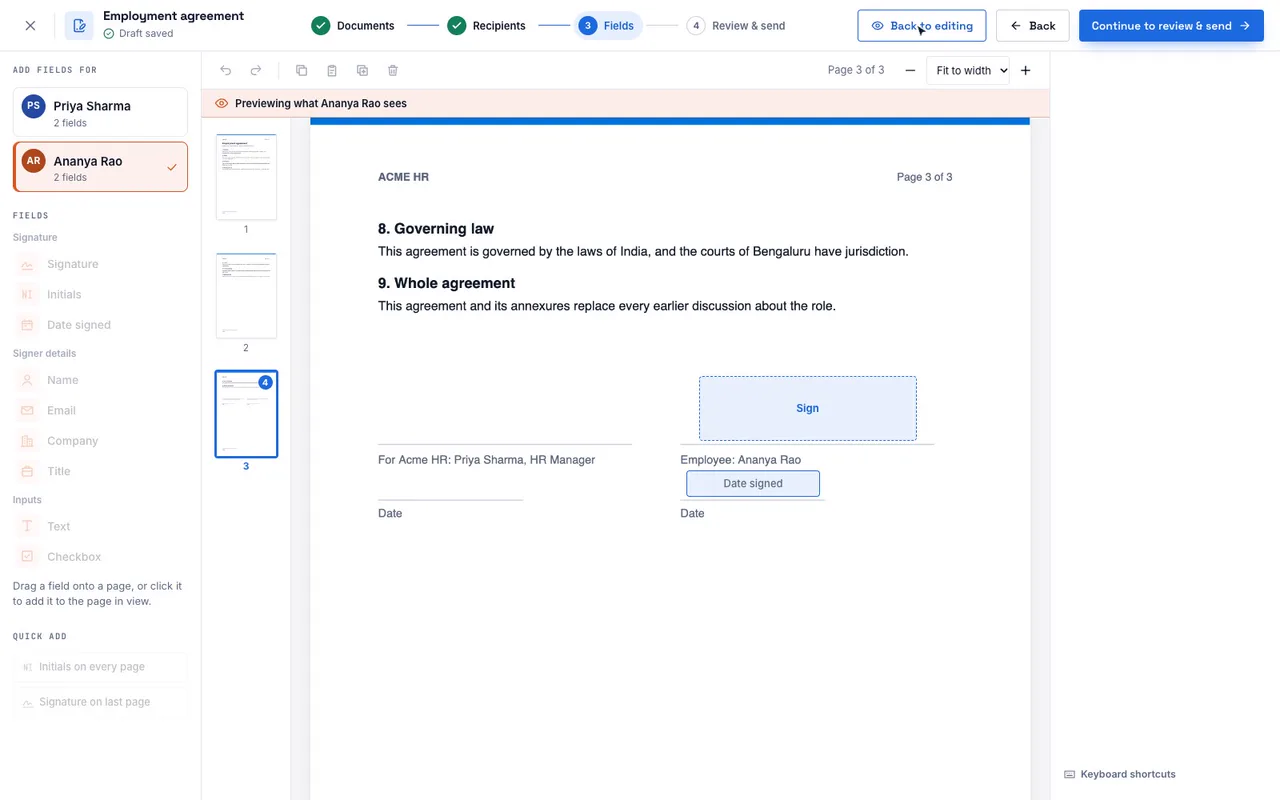
Preview as signer shows the pages as the recipient you pick sees them, with only their fields. Back to editing returns to placing fields.
4. Review & send
The email shows who it is from and to, with a preview of the email:
- Title: also the subject of the email. Up to 200 characters.
- Message (optional): shown in the email and on the signing page.
Expiry and reminders:
- Expires after: 7, 14, 30 (the default), 60 or 90 days.
- Automatic reminders: Off, every day, every 2 days (the default), every 3 days or every week, up to 5 reminders to whoever has not acted.
The Summary counts the documents, pages and fields and lists each person in order with their identity check; the pencil next to a person takes you back to change them. Anything still missing is listed under Fix these before sending.
Press Send now. On the Free plan this counts as one of your 10 envelopes this month; see Plans and pricing.
Follow it
Envelopes lists every envelope with its status. Search by title, filter by status, and select several to void them together.
| Status | Means |
|---|---|
| Draft | Not sent yet. |
| Waiting for others | Sent; someone still has to act. |
| Completed | Everyone acted. The sealed PDF is ready. |
| Declined | A recipient declined, with a reason. |
| Expired | The expiry date passed first. |
| Voided | Withdrawn by the sender or an admin. |
Each recipient shows as Not yet invited, Invited, Opened, Signed, Approved or Declined. The envelope page updates by itself while it is open.
On the envelope page:
- Remind sends a fresh link to whoever's turn it is; Resend link does it for one person.
- Correct fixes a recipient's name, email or phone.
- Get a link to share gives a signing link to pass on yourself, for example over chat. Admins and owners only. It is shown once and makes earlier links stop working.
- Recall and edit withdraws the envelope and opens a copy to change; anyone who signed signs again. A declined envelope offers Revise and resend. See Fix an envelope after sending.
- Void withdraws it for good, with a reason the recipients see. Members void what they sent; admins and owners void anything in the workspace.
- Public record turns the public record page of this envelope off or on. See Verify a sealed PDF.
Download the result
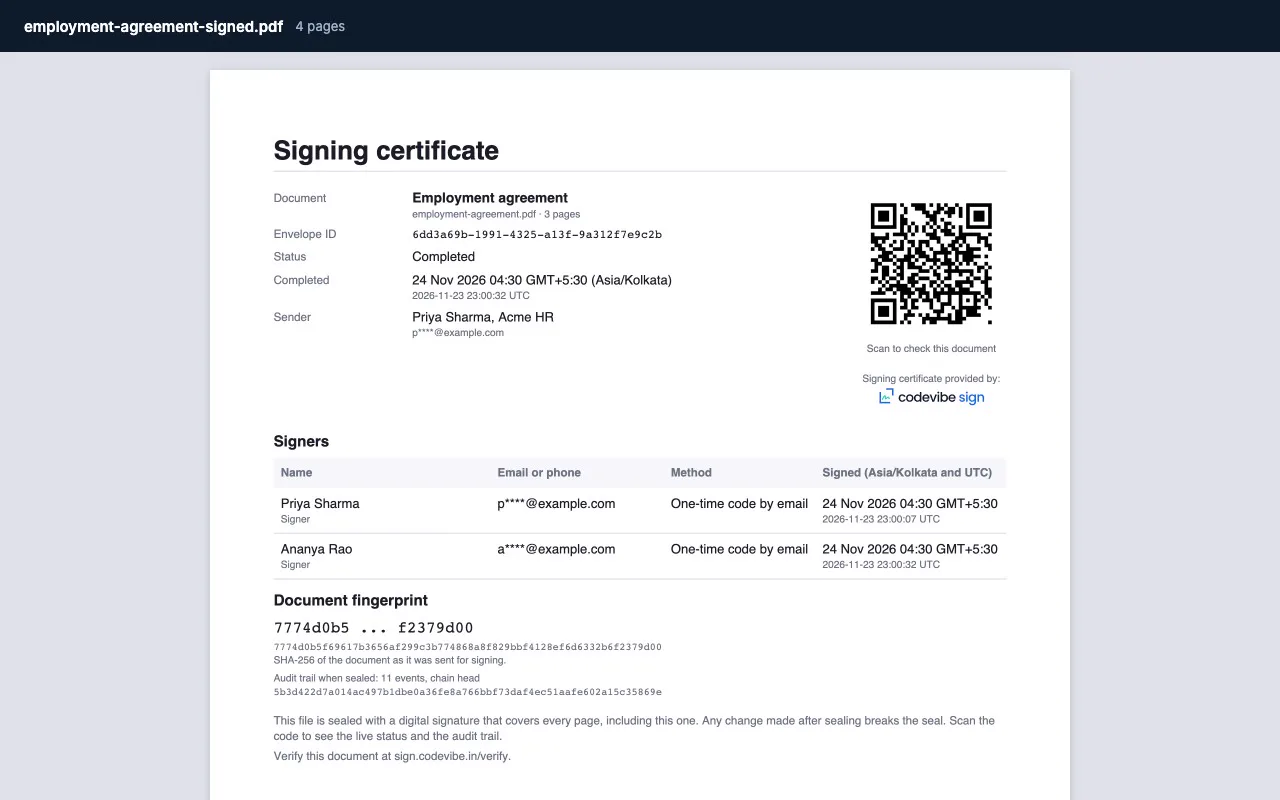
When it is completed, the Documents card offers the Signed PDF and the Original. The signed PDF is one sealed file with the signing certificate as its last page. The Certificate card offers the Audit trail (PDF), a separate file, and the same record as JSON. The audit trail lists every event with its time in your workspace's time zone and in UTC, who acted, the network address it came from, how each person signed and the document hashes. Every recipient also gets the sealed copy and the audit trail PDF by email: attached when together they are up to 10 MB, otherwise as personal download links that work for 30 days.
Next
Sign a document: what your recipients see.